
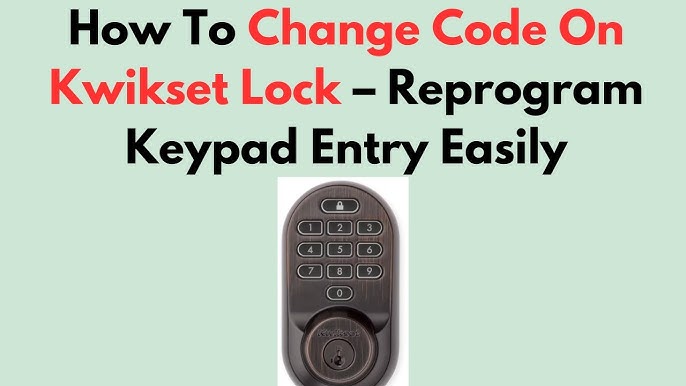
Are you worried about who else might have access to your home? Changing the code on your Kwikset lock is a simple way to take control of your security.
Whether you just moved in, lost your code, or want to keep unwanted visitors out, updating your lock’s code gives you peace of mind. In this guide, you’ll learn exactly how to change your Kwikset lock code quickly and easily—no special tools or skills needed.
Keep reading, and you’ll have your lock secured in no time.
Tools Needed
Changing the code on your Kwikset lock is a simple task. You only need a few tools to get started.
Having the right tools ready makes the process faster and easier.
Phillips Head Screwdriver
A Phillips head screwdriver helps remove the lock’s cover. This tool fits the screws on most Kwikset locks.
Use it carefully to avoid stripping the screws.
New Programming Code
You need the new code ready before you start. This code will replace your old lock code.
Make sure the code is easy to remember but hard to guess.
Instructions Manual
Having your Kwikset lock manual helps guide you through the process. It shows exact steps for your lock model.
If you lost the manual, you can find a digital copy on Kwikset’s website.
Small Flathead Screwdriver (optional)
A small flathead screwdriver may help remove small parts gently. Use it if the cover is tight or stuck.
- Carefully pry off plastic covers
- Release battery compartments
- Avoid damaging the lock parts

Credit: www.youtube.com
Locate The Programming Button
Changing the code on your Kwikset lock is simple. You need to find the programming button first. This button lets you make changes to the lock's settings.
Knowing how to locate the programming button is crucial. It ensures you can reset or update your lock code effectively.
Understanding The Lock Components
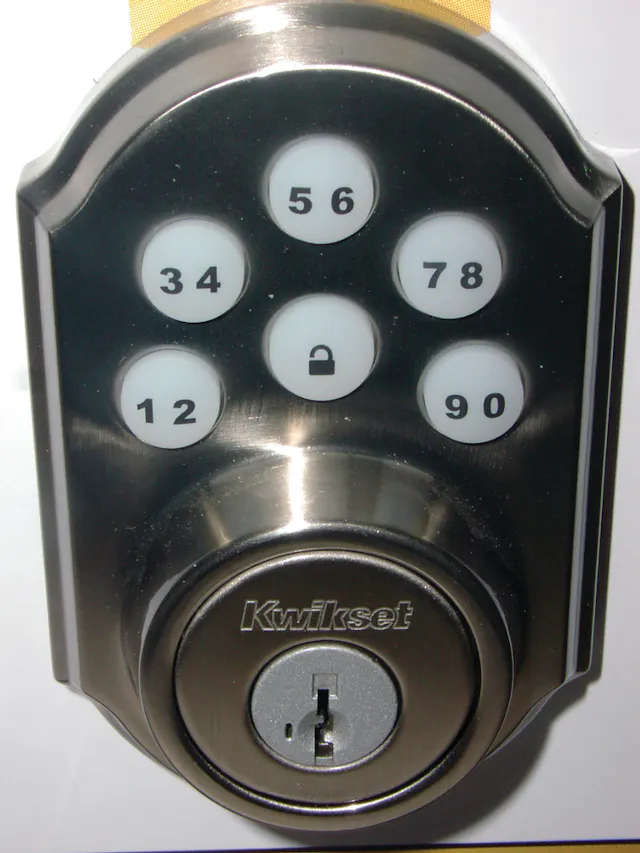
Your Kwikset lock has several components. Familiarity with these parts helps in finding the programming button.
- The keypad is where you enter your code.
- The battery pack powers the lock.
- The programming button is usually inside the cover.
Steps To Access The Programming Button
Follow these steps to access the programming button on your Kwikset lock:
- Remove the battery cover from the lock.
- Locate the small, circular button inside.
- Press this button to enter programming mode.
Why The Programming Button Is Important
The programming button is key for security. It allows you to change codes and reset settings as needed.
| Function | Description |
| Code Change | Update your lock code |
| Reset | Restore default settings |
| Security | Enhance lock security |
Enter Programming Mode
To change the code on your Kwikset lock, you first need to enter programming mode. This mode lets you add or delete user codes.
Entering programming mode is simple but requires the factory code or current programming code. Follow the steps carefully to avoid lock errors.
Open the interior part of the lock to find the programming button. It is usually a small black button on the inside of the lock.
Pressing this button starts the programming mode. You must press it within a few seconds after entering the current code.
Use The Programming Code
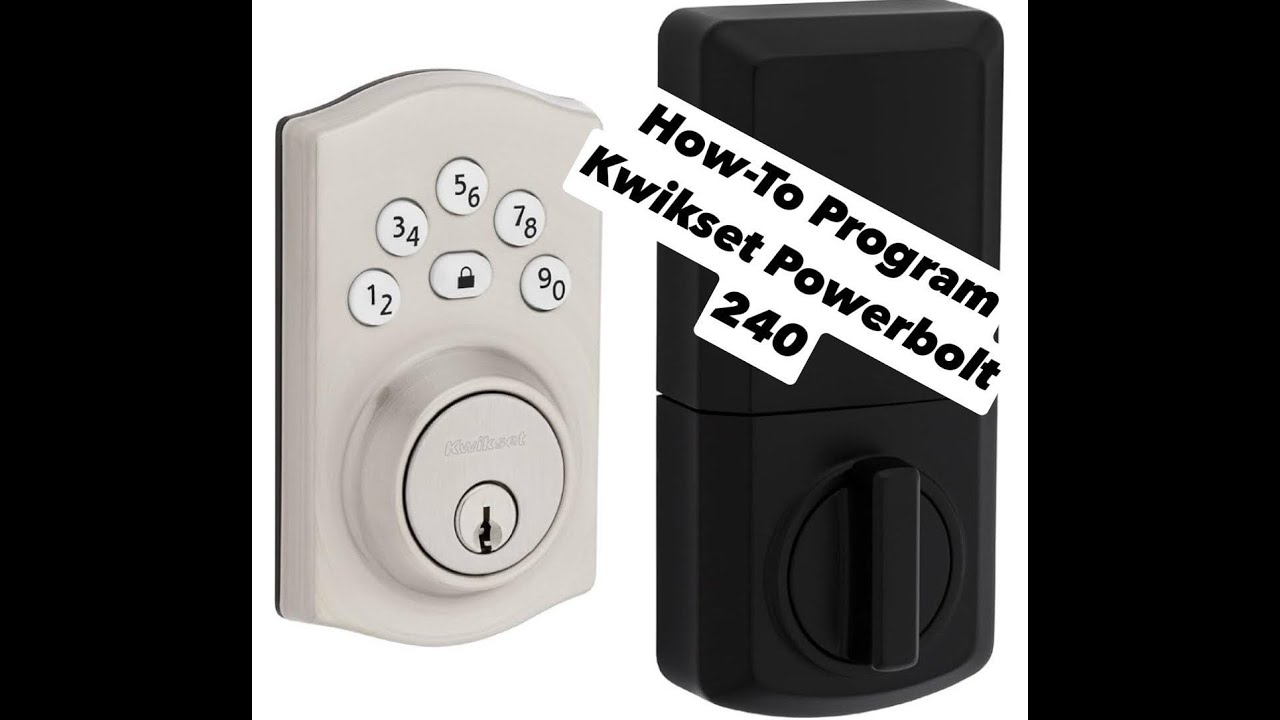
Enter the programming code on the keypad. This code is usually six digits and is found on the manual or on a sticker inside the lock.
- Wake the lock by pressing the lock button or touching the keypad.
- Enter the programming code. The lock will beep to confirm.
- Press the programming button inside the lock within 5 seconds.
- The lock will beep again and the keypad lights will flash.
- You are now in programming mode and can change codes.
Check For Successful Entry
After pressing the programming button, listen for beeps. One long beep means success. Multiple short beeps mean an error.
| Beep Pattern | Meaning |
|---|---|
| One long beep | Entered programming mode |
| Multiple short beeps | Error, try again |
| No beep | Check battery or code |
Credit: www.youtube.com
Delete Existing Codes
Changing the code on your Kwikset lock helps keep your home secure. Sometimes, you need to delete old codes before adding new ones.
Deleting codes ensures only trusted people can enter. This guide explains how to clear all codes or delete specific ones.
Clear All Codes
To remove all user codes from your Kwikset lock, you reset it to factory settings. This deletes every code except the master code.
Use this option if you want a fresh start or if you lost track of all codes.
- Find the reset button inside the lock's interior.
- Press and hold the reset button for about 10 seconds.
- Release the button when the lock beeps or flashes.
- All user codes will be erased.
- The master code stays active for programming.
Delete Specific Codes
You can remove individual user codes without clearing all codes. This helps if one person no longer needs access.
Follow these steps to delete specific codes from your Kwikset lock.
- Enter the programming mode by pressing the lock’s program button.
- Input your master code followed by the pound key ().
- Choose the option to delete user codes.
- Enter the user code number you want to remove.
- Confirm the deletion by pressing the pound key ().
- Exit programming mode by pressing the program button again.
Add New User Codes
Adding new user codes to your Kwikset lock keeps your home secure. You can give access to family or friends easily.
This guide explains how to create a master code and add user codes step-by-step.
Create Master Code
The master code controls all user codes on your Kwikset lock. Set a strong master code to keep control.
- Enter programming mode by pressing the lock’s programming button.
- Enter the default master code or current master code.
- Press the programming button again.
- Enter a new 4 to 8 digit master code.
- Press the lock button to save the new master code.
Add User Codes
You can add new user codes after setting the master code. Each user code grants access to a different person.
| Action | Details |
| Enter Programming Mode | Press the lock’s programming button and enter the master code. |
| Select Add User Code | Press the programming button once more to start adding a user code. |
| Enter New User Code | Type a new 4 to 8 digit code for the user. |
| Save Code | Press the lock button to save and exit programming mode. |
Test New Codes
After changing the code on your Kwikset lock, testing it is important. This ensures your new code works correctly. Testing helps avoid lockouts or mistakes.
Follow simple steps to check if your new code is accepted. Make sure the lock opens and closes smoothly with the new code.
Try The New Code Several Times
Enter your new code multiple times to confirm it works. Test both locking and unlocking actions. This makes sure the lock recognizes your new code every time.
Test With Old Codes To Confirm Deactivation
Try old codes to confirm they no longer work. This step ensures only your new code can open the lock. If old codes still work, reset the lock again.
Use A Table To Track Your Code Tests
| Code Tested | Result | Notes |
|---|---|---|
| New Code | Works | Unlocks and locks smoothly |
| Old Code 1 | Fails | Access denied as expected |
| Old Code 2 | Fails | Does not open lock |
Test From Different Angles And Distances
- Stand close and enter the code
- Try from a slight angle for keypad clarity
- Use different finger pressure levels
- Test during different lighting conditions
This helps you understand how your lock responds to various conditions. It ensures reliable use in everyday situations.
Troubleshooting Tips
Changing the code on your Kwikset lock is usually simple. Sometimes, problems can stop you from updating the code.
This guide helps you fix common issues and know when to reset your lock for smooth use.
Common Issues
Many problems come from small mistakes or battery issues. Check if your batteries are fresh and inserted right.
Another common issue is entering the wrong programming code. Use the current valid code before changing it.
- Dead or weak batteries cause the lock to stop responding.
- Typing the wrong programming code will prevent changes.
- Not pressing buttons firmly can cause errors.
- Using an older or wrong model’s instructions may confuse the process.
When To Reset The Lock
Reset your Kwikset lock if you forget the programming code. Resetting clears all codes and settings.
Also reset if the lock acts strangely or does not respond after changing codes. This restores factory settings.
- You lost the current programming code.
- The lock does not accept new codes.
- Buttons stop working or respond late.
- The lock behaves erratically after updates.
Credit: www.locksmithledger.com
Frequently Asked Questions
How Do I Reset My Kwikset Lock Code?
To reset your Kwikset lock code, first find the programming button on the interior side. Press and hold it until it beeps. Enter a new code, then press the programming button again to save. Your new code is now active and ready to use.
Can I Change The Code Without The Original One?
Yes, you can change the code without the original if you have the programming code. Enter programming mode by pressing the button on the inside of the lock. Then, follow the lock’s manual steps to add or change user codes safely.
How Often Should I Change My Kwikset Lock Code?
It is recommended to change your Kwikset lock code every 3-6 months. Regular changes enhance security and prevent unauthorized access. Change it immediately if you suspect someone else knows your current code.
What Tools Do I Need To Change Kwikset Lock Code?
No special tools are required to change your Kwikset lock code. You only need to access the interior of the lock and use the keypad. Follow the instructions in your lock’s manual for a quick code change.
Conclusion
Changing the code on your Kwikset lock is simple and quick. Just follow the steps carefully and take your time. Regularly updating your code keeps your home safe and secure. You can do this anytime you feel the need for extra protection.
Remember to write down the new code and keep it safe. A little effort goes a long way in protecting your home. Stay safe and confident with your Kwikset lock.